
Design /
Overlays
Creght supports two types of overlays: Relative Overlay and Absolute Overlay.
Relative Overlay
A Relative Overlay floats around an element. It is commonly used for tooltips, dropdown menus, and similar UI patterns.
- To add a relative overlay:
Select any frame.
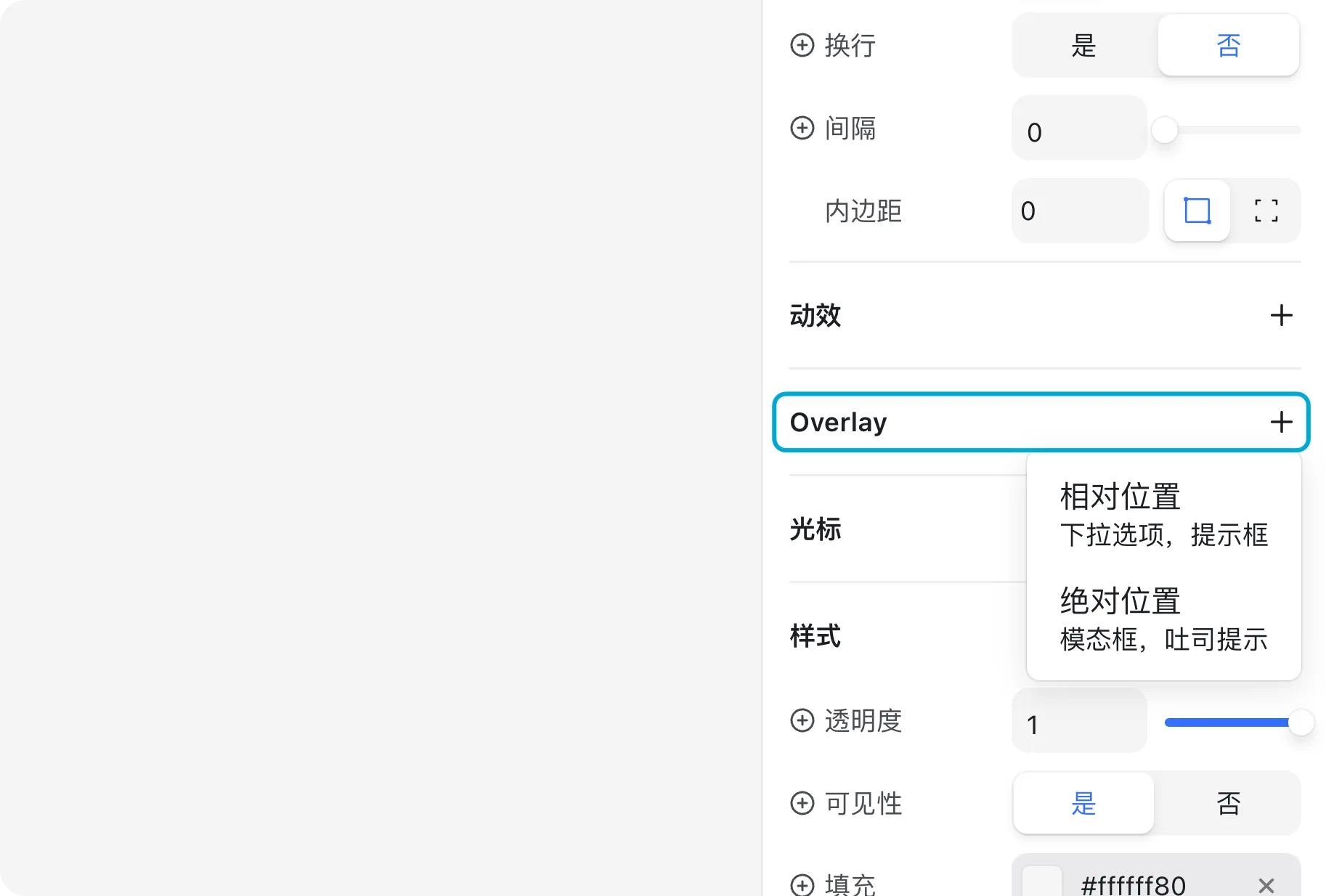
- In the right panel, go to Overlay → Add → Relative.
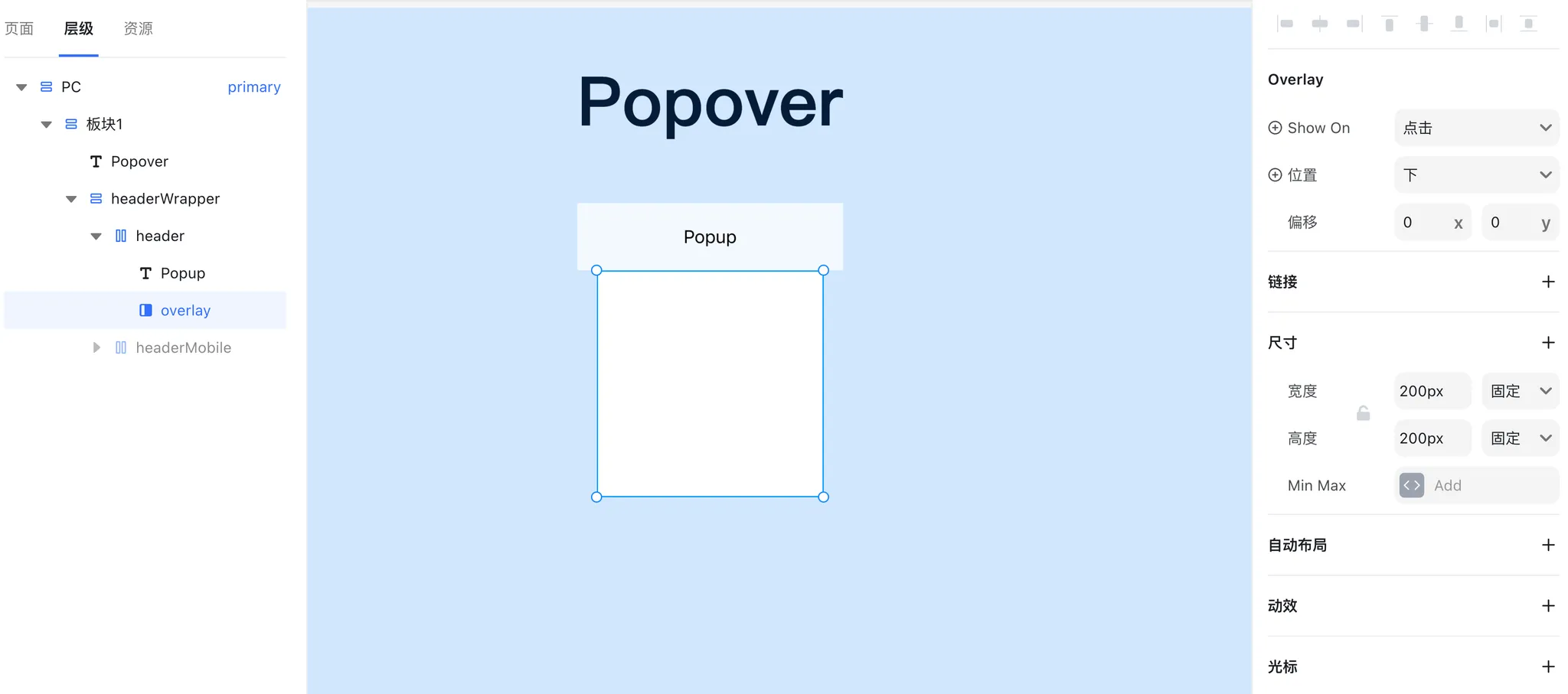
- By default, the overlay size is 200 × 200px, but you can resize it by dragging the edges.
An overlay works like a regular container, meaning you can add any child elements inside it just as you would on the main canvas.
Example: A tooltip created with a relative overlay.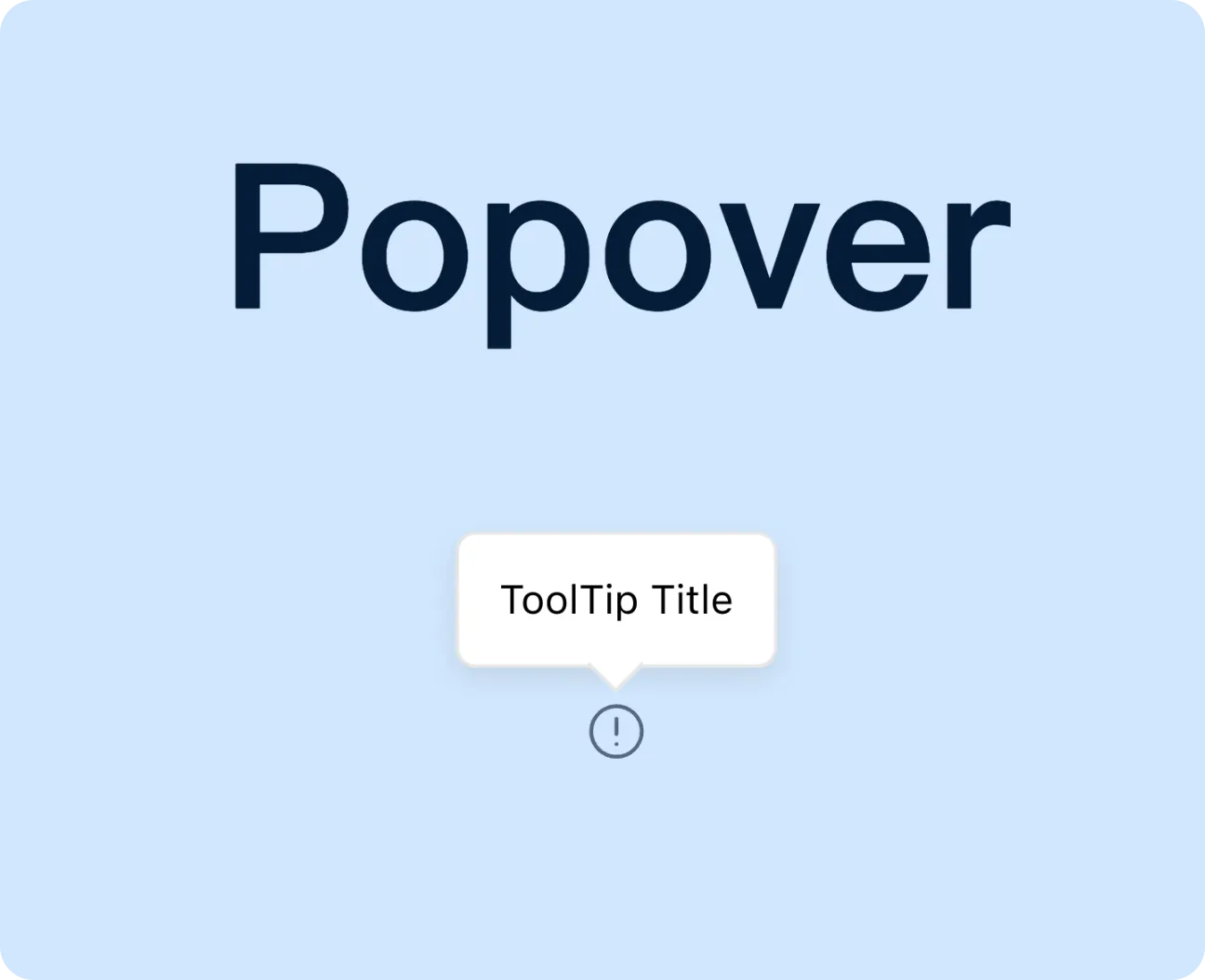
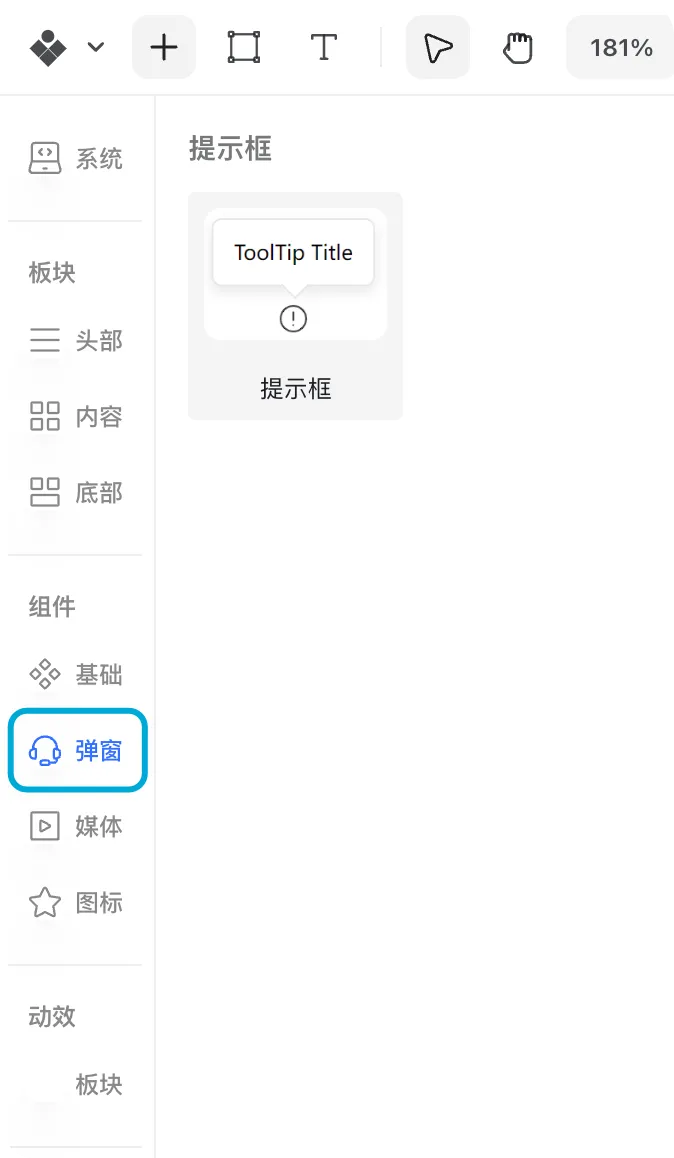
You can also find ready-to-use templates under Insert → Overlay.
Absolute Overlay
An Absolute Overlay covers the entire page. It is typically used for modals, video players, or detail views.
Example: A video modal with a close button.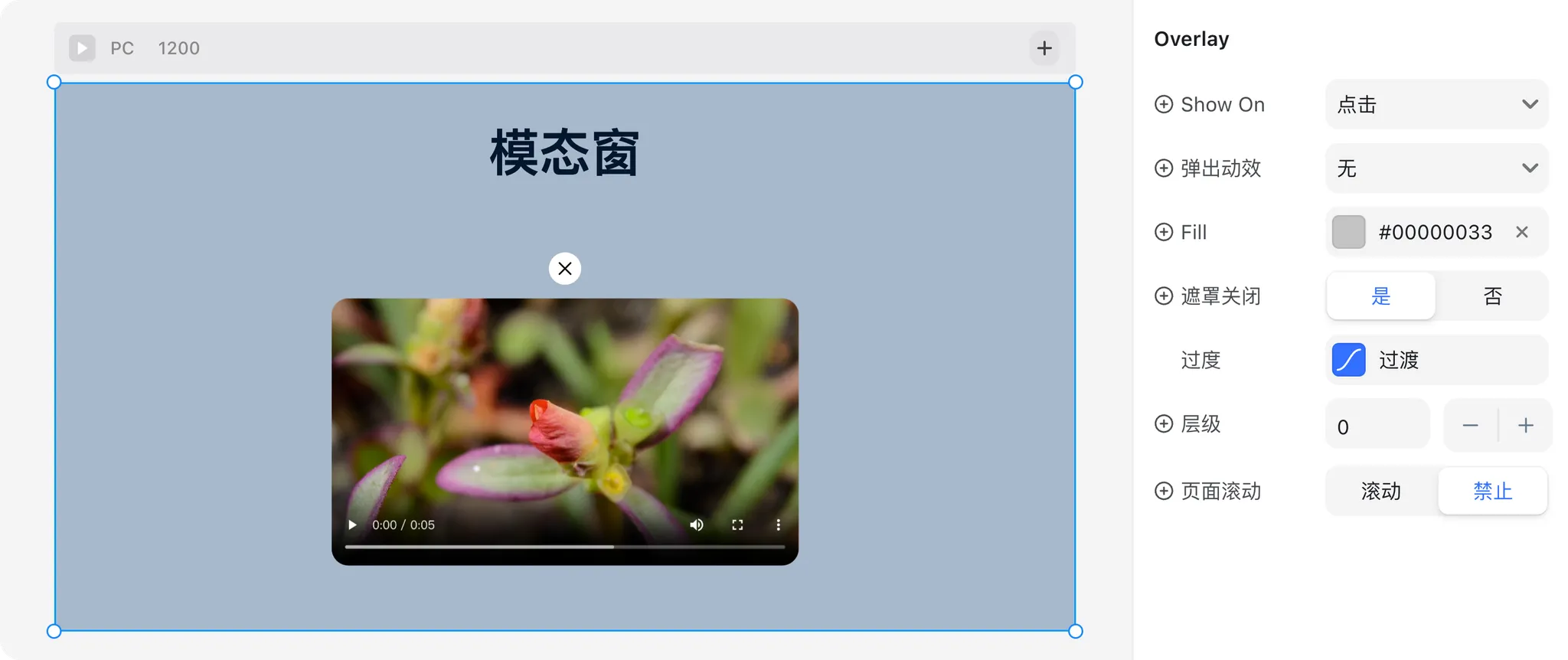
- To add an absolute overlay:
- Select any frame.
- In the right panel, go to Overlay → Add → Absolute.
- An absolute overlay includes a fullscreen mask container by default.
- The mask has fixed width and height (fullscreen) and cannot be resized.
- However, you can customize its background color.
Relative vs. Absolute Overlay
| Feature | Relative Overlay | Absolute Overlay |
|---|---|---|
| Position | Floats around an element | Covers the entire page |
| Typical Use Cases | Tooltip, dropdown menu | Modal, video player, data details |
| Default Size | 200 × 200px (resizable) | Fullscreen (fixed) |
| Resizable | ✅ Yes (drag to adjust) | ❌ No (fixed fullscreen) |
| Background Overlay | Not included | ✅ Includes fullscreen mask (color customizable) |
| How to Add | Right panel → Overlay → Add → Relative | Right panel → Overlay → Add → Absolute |