
CMS /
CMS (Content Management System)
CMS (Content Management System) is used to manage dynamic content such as Cases, News, Blogs, and more.
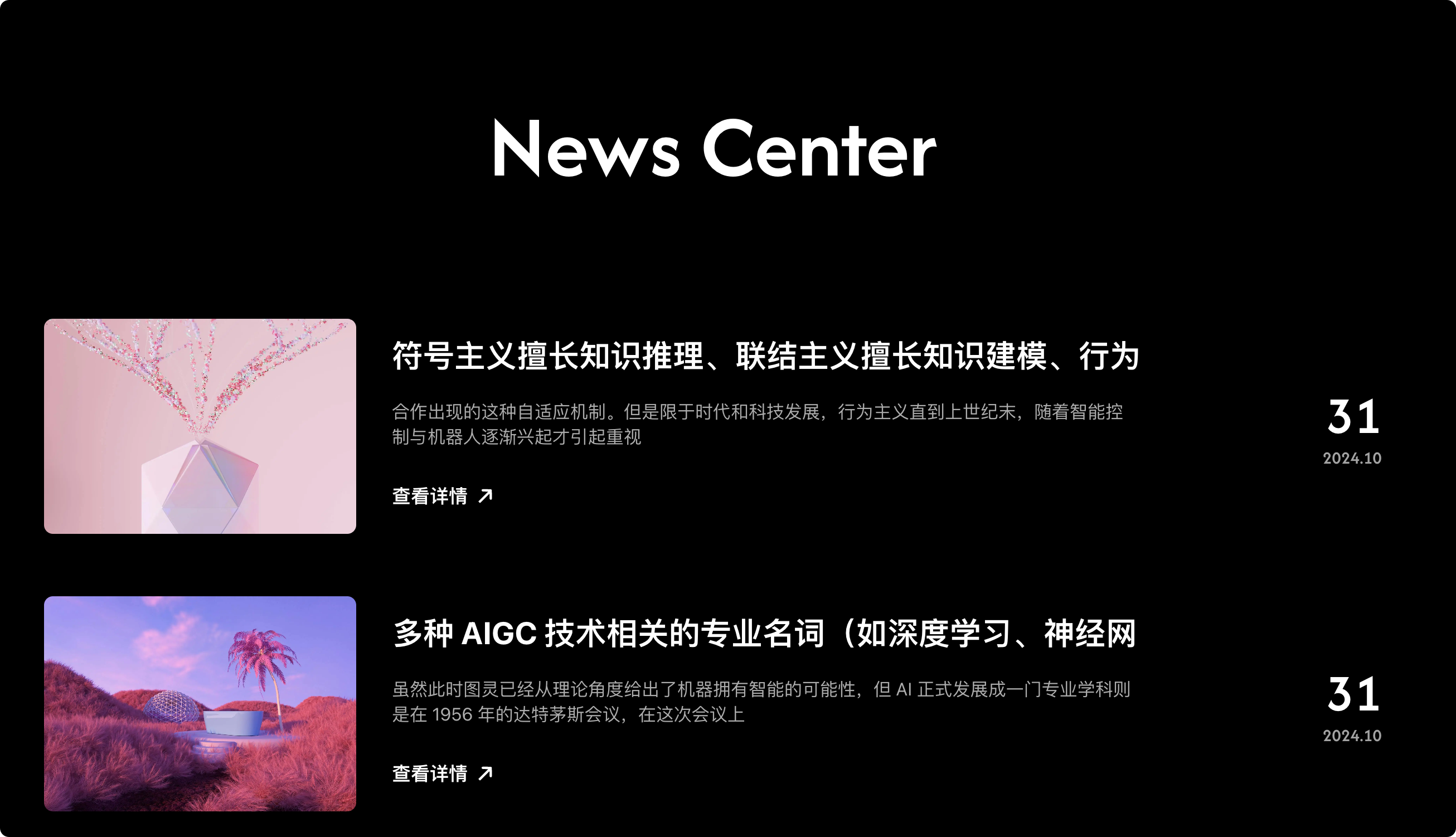
For example, the News page here:https://oc2wp6b7n7te.site.creght.com/news
is powered by CMS.
Managing Content
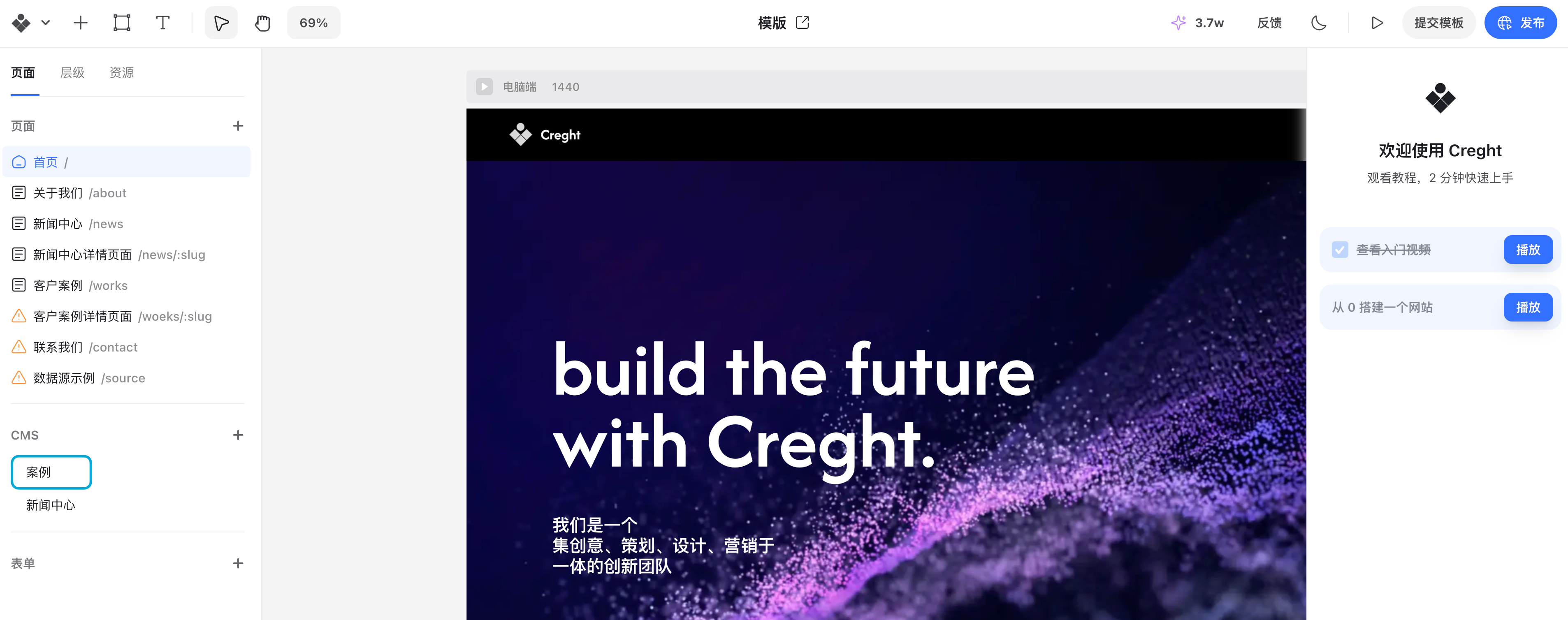
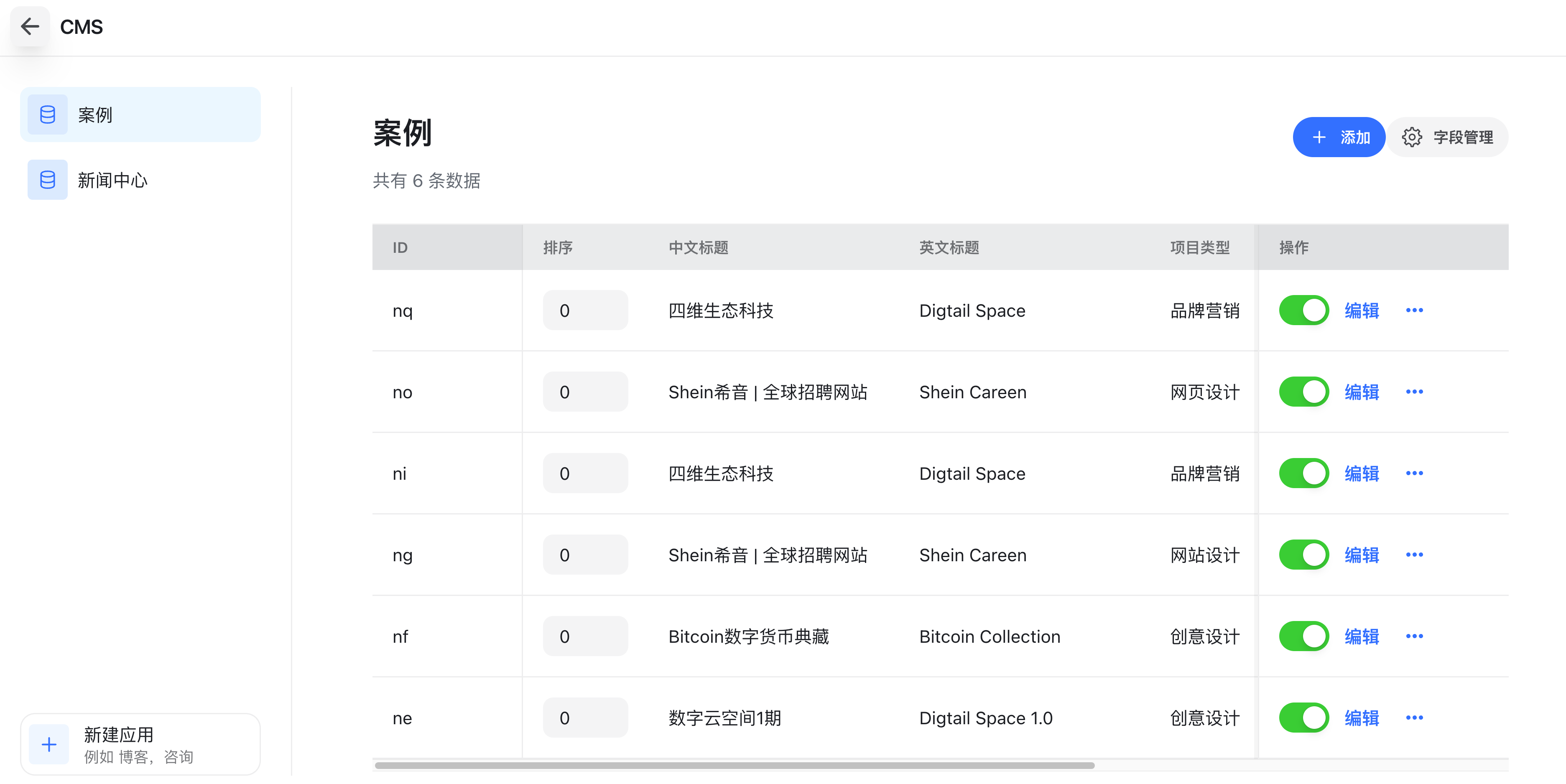
In the editor, go to the left-hand Pages panel and click the corresponding CMS to enter its management page.
Drafts & Publishing
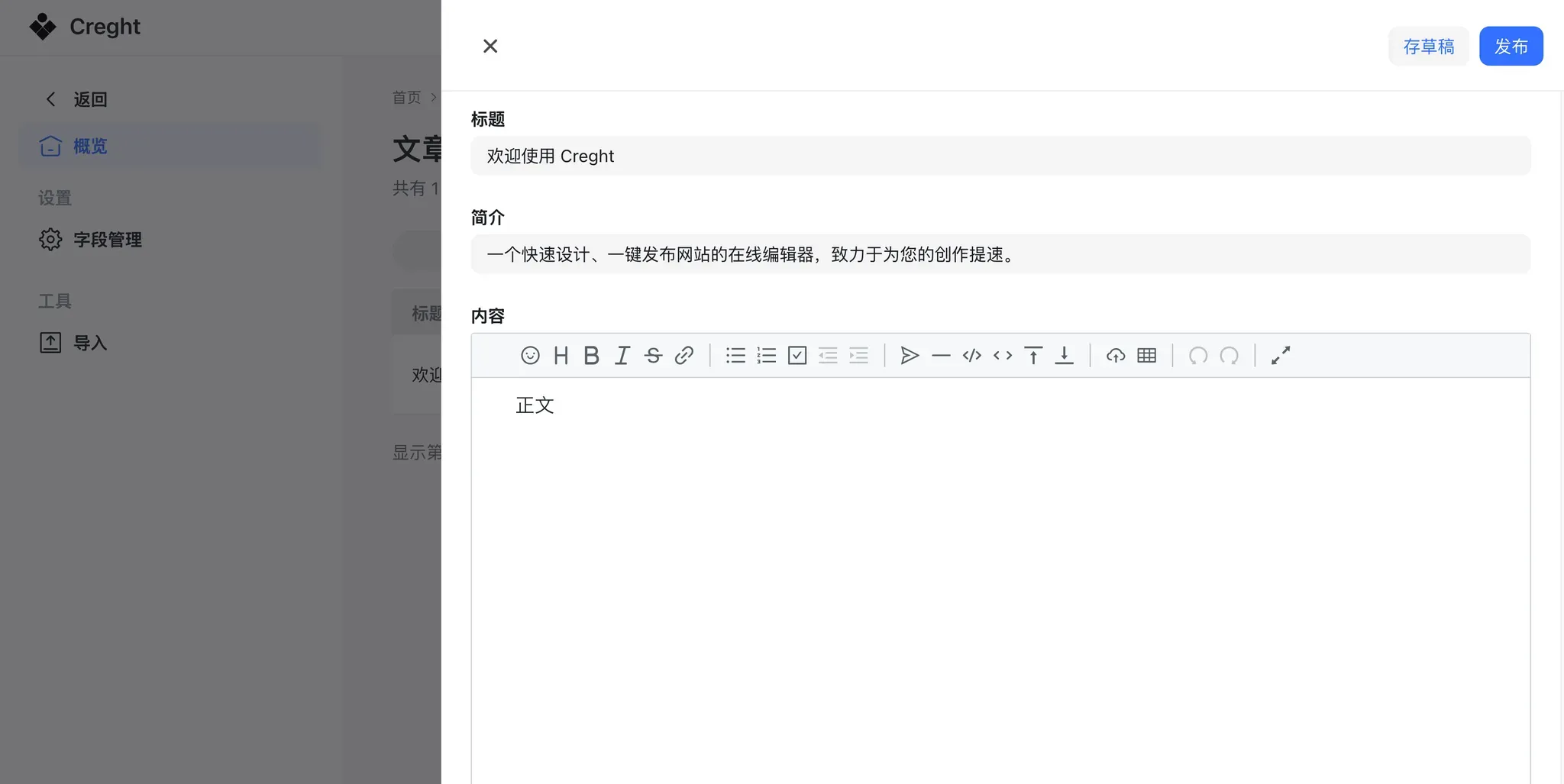
When editing CMS entries, changes are automatically saved as drafts. Drafts are not visible online.
To make content live, click Publish.
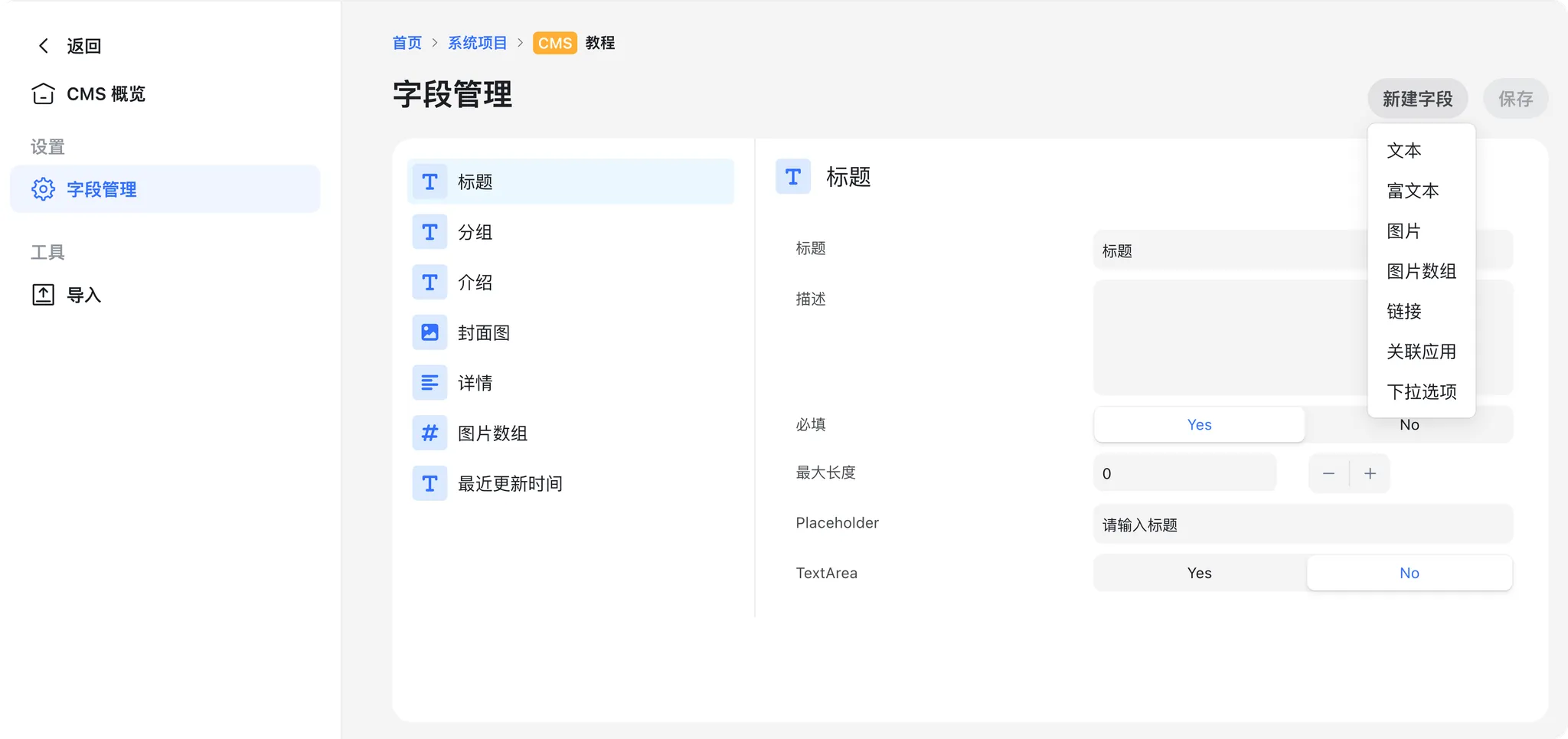
Field Management
CMS fields can be dynamically added. Common fields include:
- Title
- Cover Image
In the CMS detail view, go to Field Management to add custom fields. Creght supports field types such as:
- Text
- Rich Text
- Image
- And more
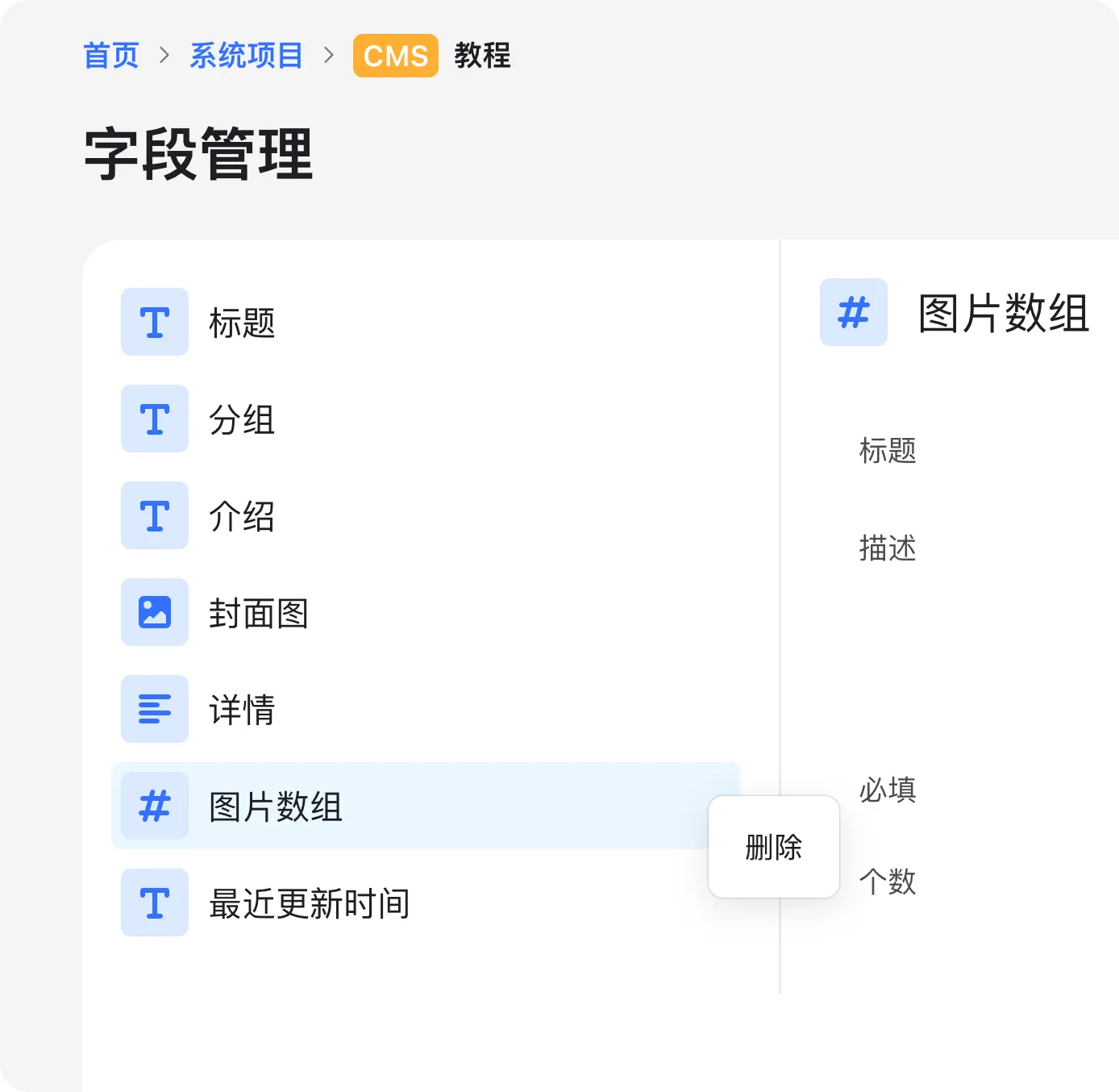
To delete a field, right-click on it:
Displaying CMS Content on Pages
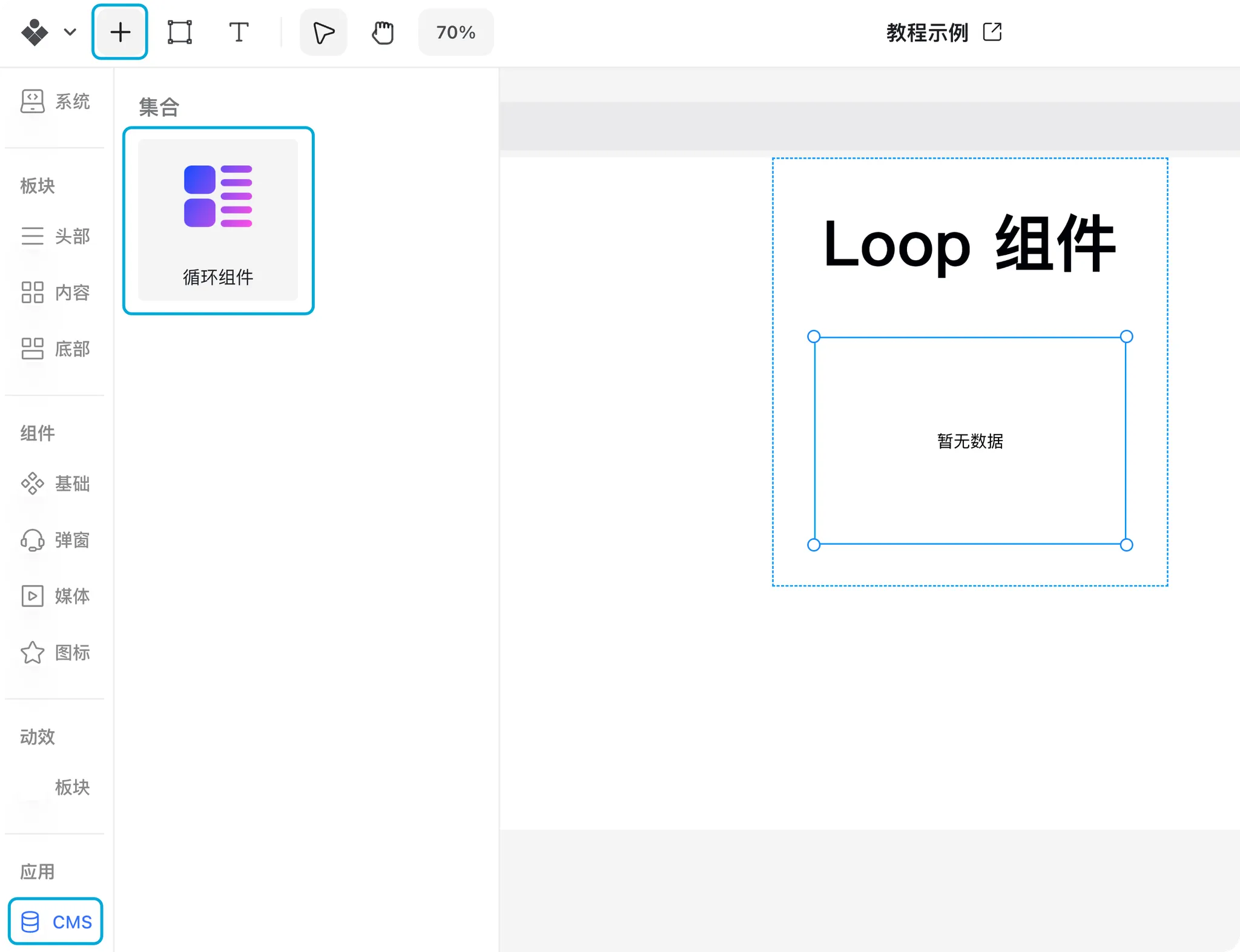
To display CMS content on your website, use the Repeater Component.
- You can place a Repeater on any page.
- In the Insert Panel → CMS, find the Repeater component.
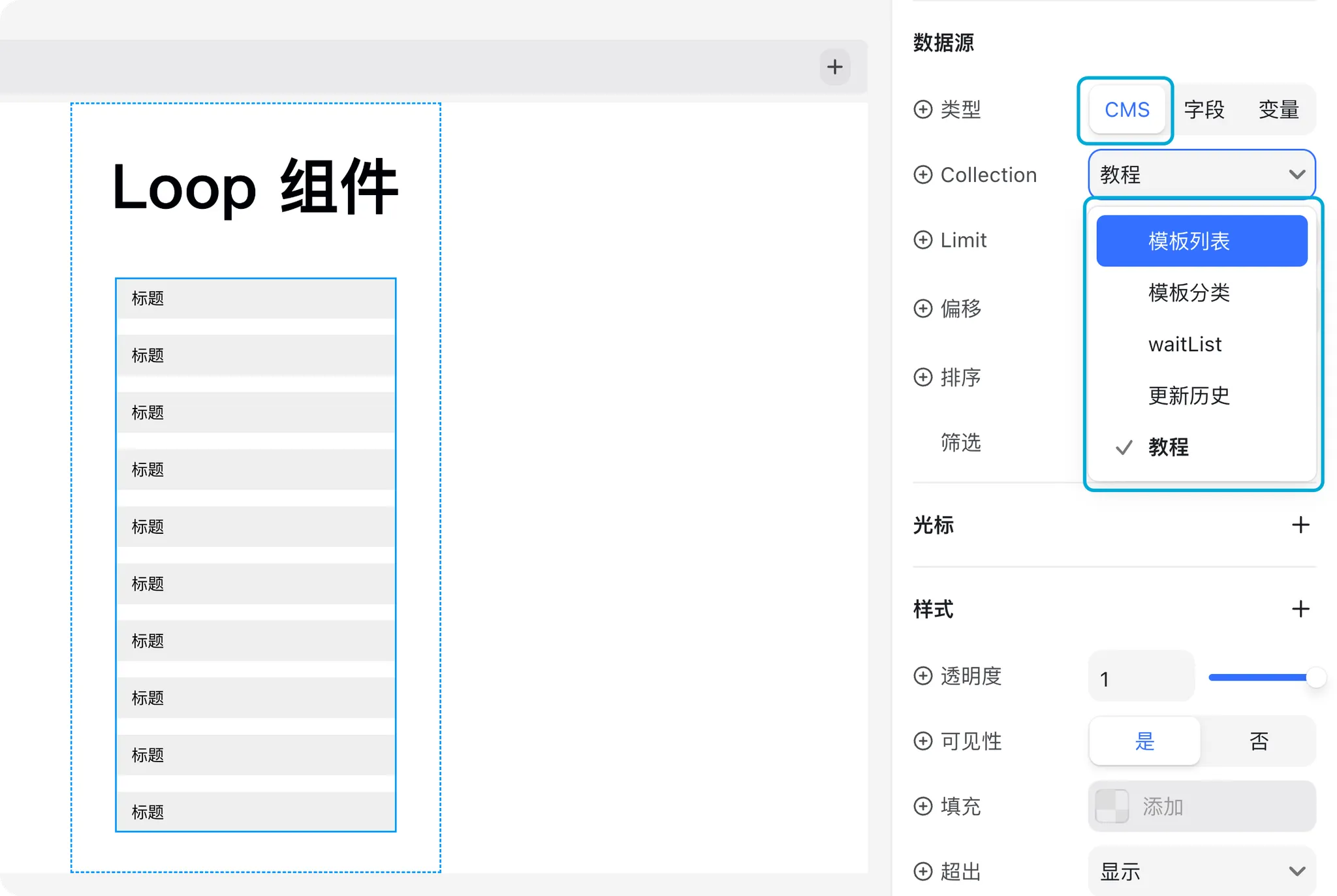
Step 1: Bind the CMS
After inserting a Repeater, select it and bind it to a CMS application in the right-hand panel.
Step 2: Add Child Elements
Add child elements inside the Repeater. For example, to display articles in a list:
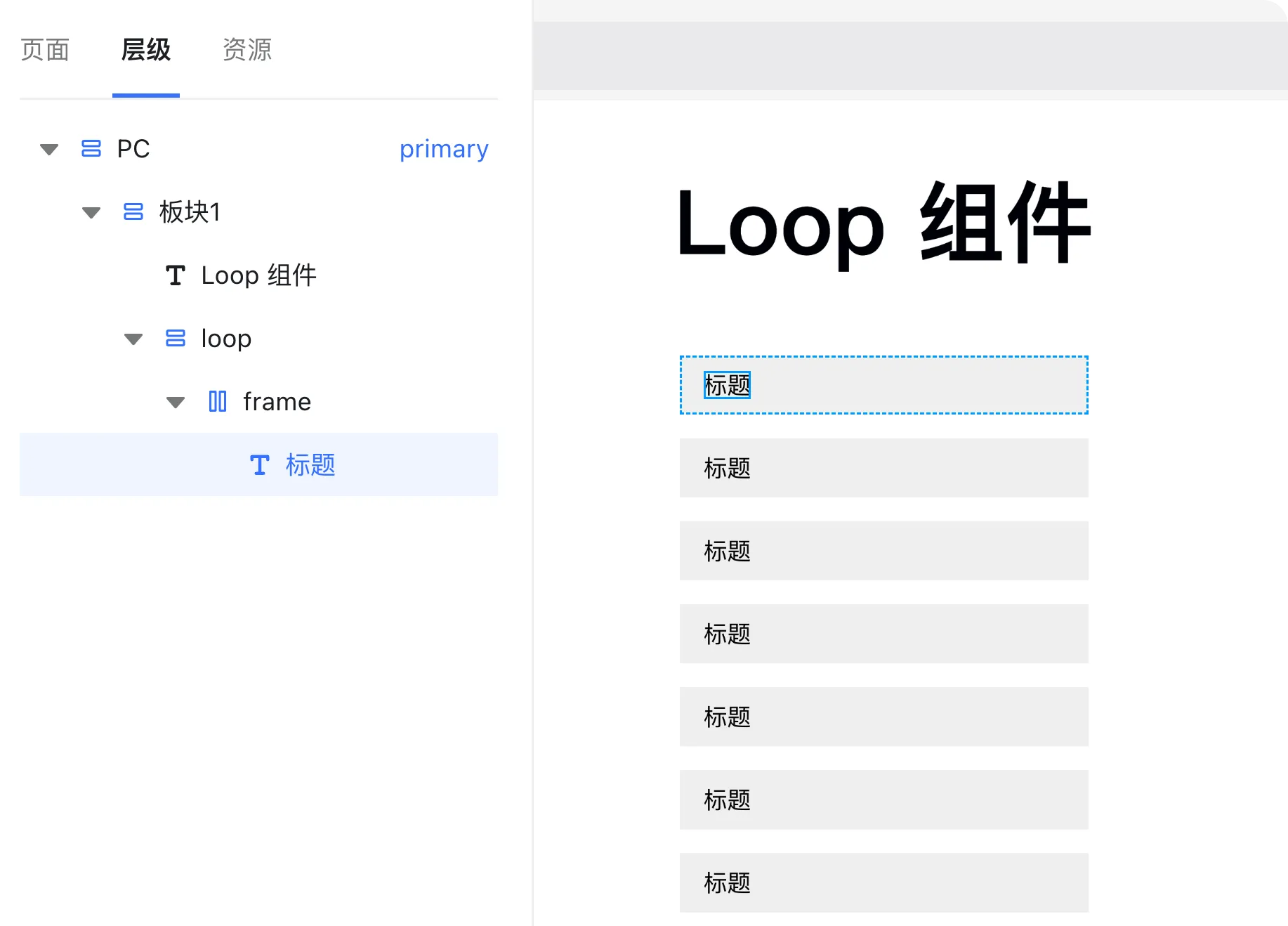
Even if only one child element is added, it will be repeated for every CMS item. This is the core function of the Repeater: loop rendering child elements.
Step 3: Bind Variables
By default, repeated child elements may show the same content. To display unique CMS data (e.g., each article’s Title), bind variables:
- Select the text element.
- Click the plus (+) icon next to the Text property to bind a CMS field.
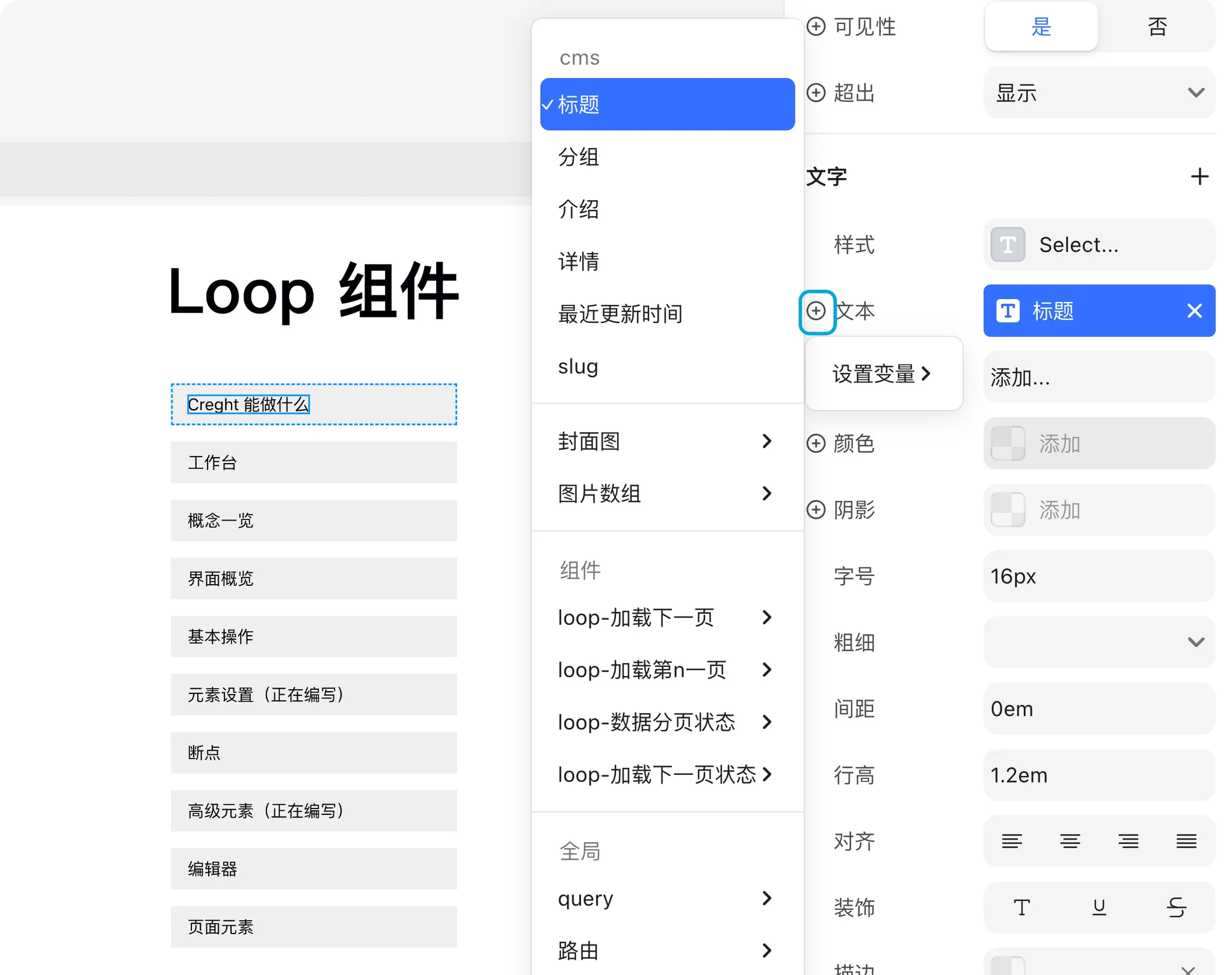
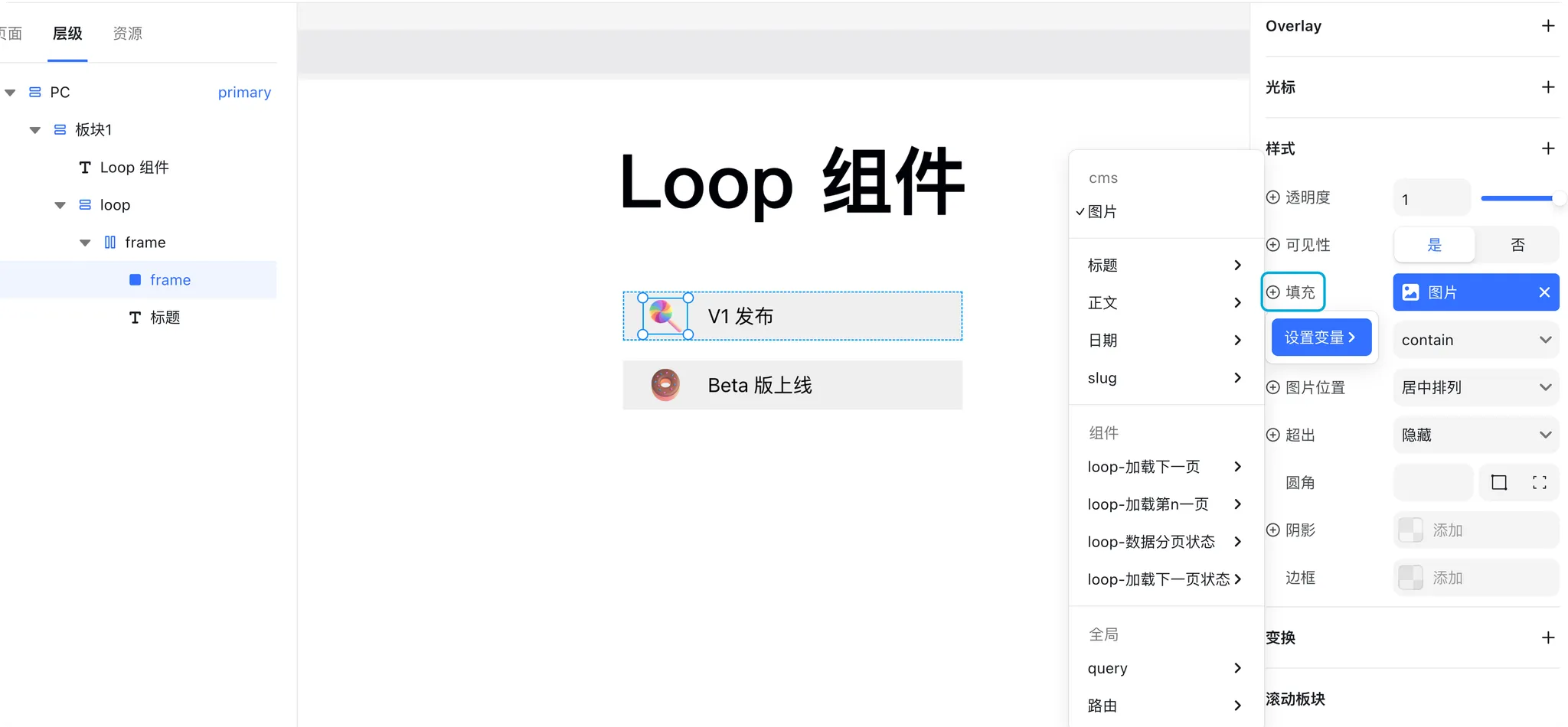
The same can be done for images—bind the Cover Image field.
This creates a simple image-and-text article list:
Notes
- Advanced CMS features and field types will be covered in a dedicated help article soon.
- CMS can be complex. If you encounter difficulties, please contact our support team—we’ll be glad to help in detail.