
开始使用 /
直接编辑:不消耗积分的内容修改
在 Creght 里,改文字、换图片这类内容调整不需要动用 AI。页面上大多数的文字和图片都支持「直接编辑」——双击就能改,即时生效,不消耗任何积分。
把 AI 留给真正需要它的事(改布局、加模块、批量重构),日常的文案修改用直接编辑就够了。
双击,开始编辑
在设计画布中双击任意文本,会同时发生两件事:
文字进入原地编辑状态:出现琥珀色边框,光标就落在你双击的位置,直接打字修改即可。按 Enter 保存,按 Esc 取消,或点击页面其它位置自动保存;
旁边弹出元素编辑浮窗,展示这个元素能直接编辑的全部内容。
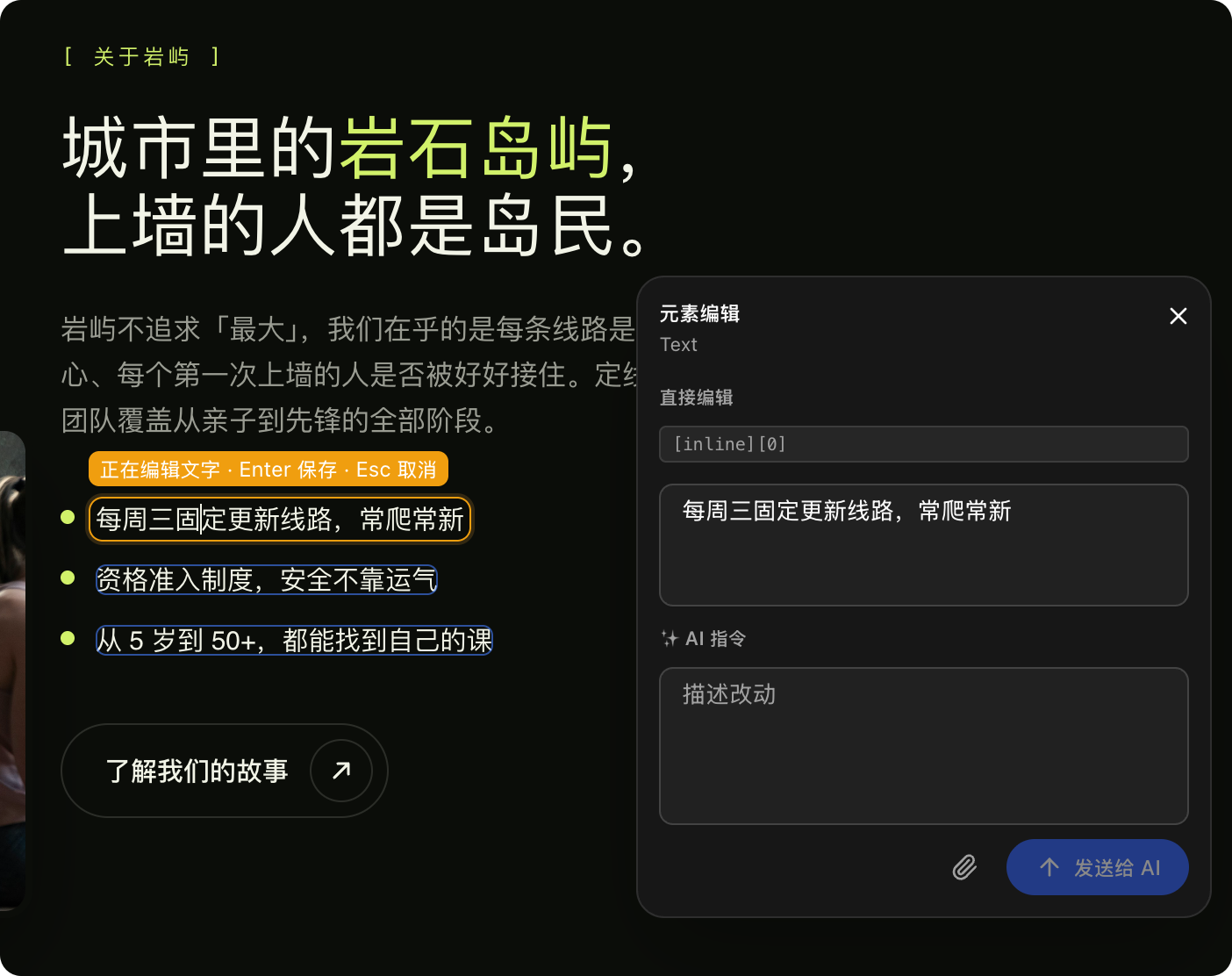
浮窗分为两个区域:
区域 | 用途 | 积分 |
|---|---|---|
直接编辑 | 修改文字、图片、组件属性,改完立即写入代码 | 不消耗 |
AI 指令 | 用自然语言描述复杂改动,交给 AI 完成 | 按量消耗 |
只要「直接编辑」区域里有输入框,就说明这项内容可以零成本修改。
编辑组件的每一个属性
如果你选中的是一个组件(比如价格卡、轮播图、按钮),浮窗会把它的每一个属性平铺出来,每项一个独立的输入控件:
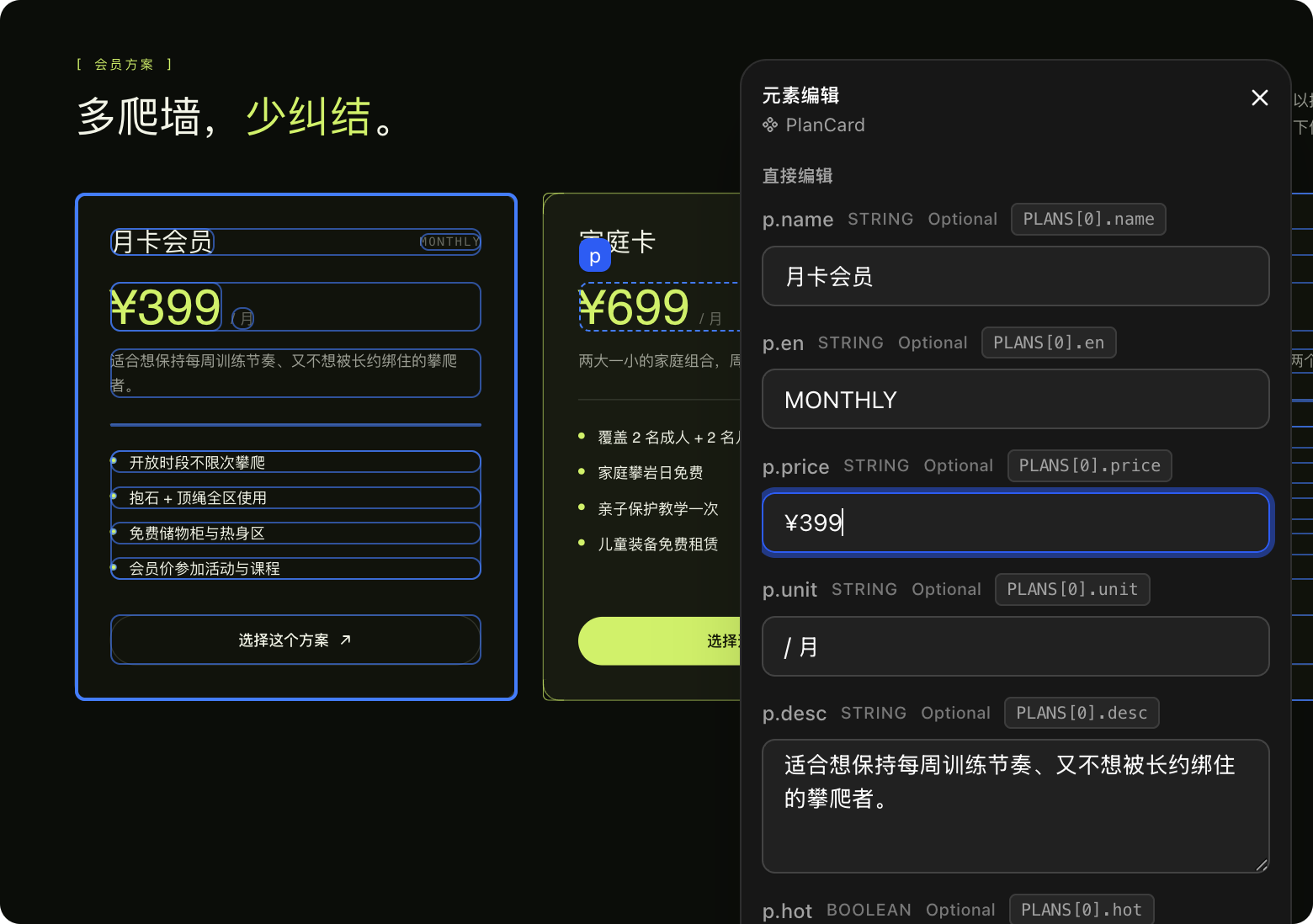
文本属性:直接改字,比如价格卡的名称、价格、描述;
颜色属性:点开取色器选颜色,支持色值输入;
开关属性:勾选框切换,比如「是否高亮」「是否可拖拽」;
数字属性:直接输入数值,比如动画时长、阻尼系数。
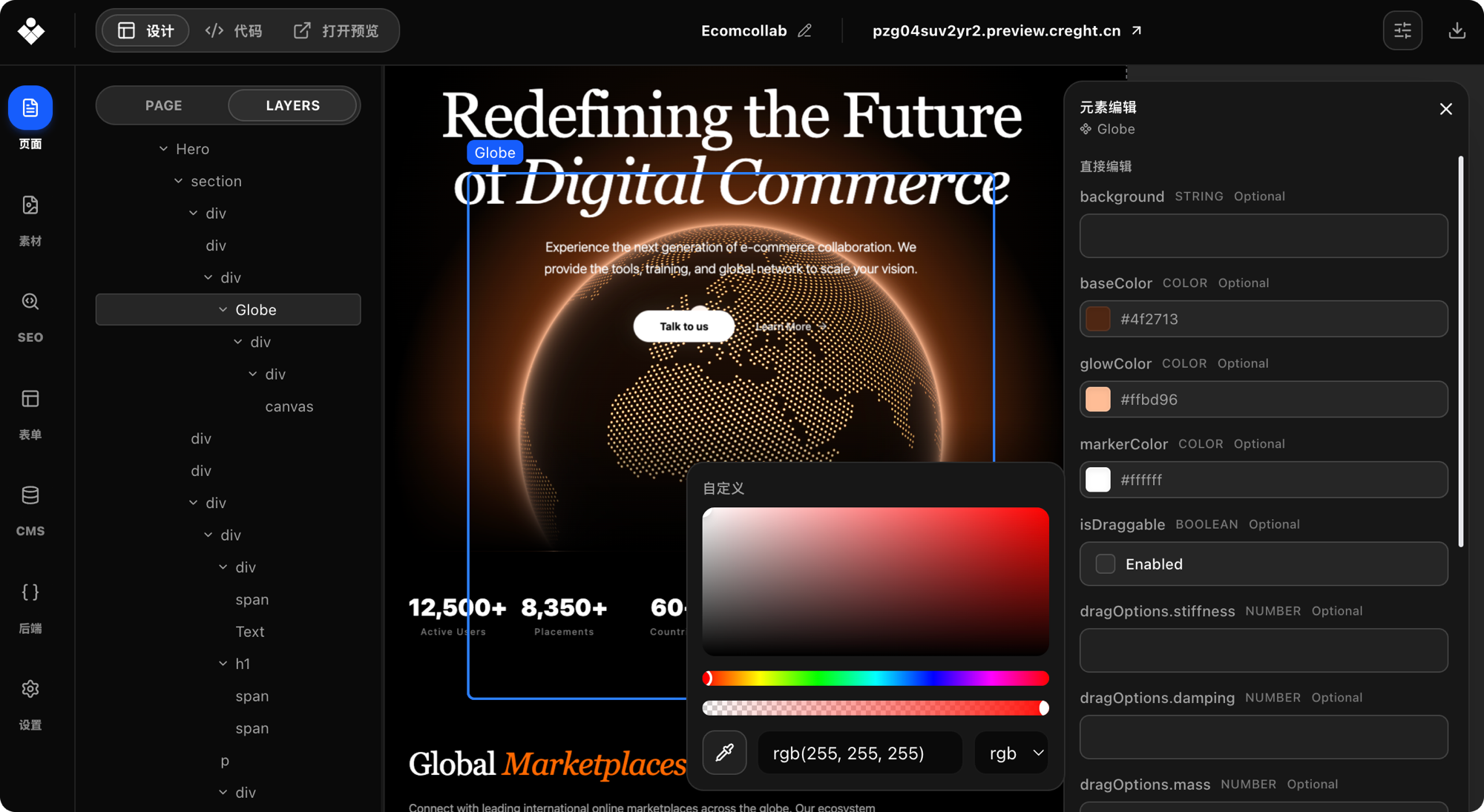
同一个组件在页面上复用了多份也不用担心——Creght 能分辨你点的是哪一张卡片,修改只会落在你选中的那一份数据上。
替换图片
选中图片元素后,「直接编辑」区域可以:
上传新图片或粘贴图片地址,替换当前图片;
修改图片的 alt 描述(对 SEO 友好);
调整填充方式(铺满、包含等)。
和文字一样,图片来自数据列表或共享配置时,替换也会写回对应的数据源。
什么时候需要 AI 指令
直接编辑覆盖了页面上大多数的文字和图片。少数内容是运行时动态计算的(比如根据条件拼接的文案),无法安全地直接修改——这时浮窗会只保留 AI 指令入口,用一句话描述你要的改动即可。
此外,这些场景也更适合交给 AI:
调整布局、间距、配色风格;
新增或删除页面模块;
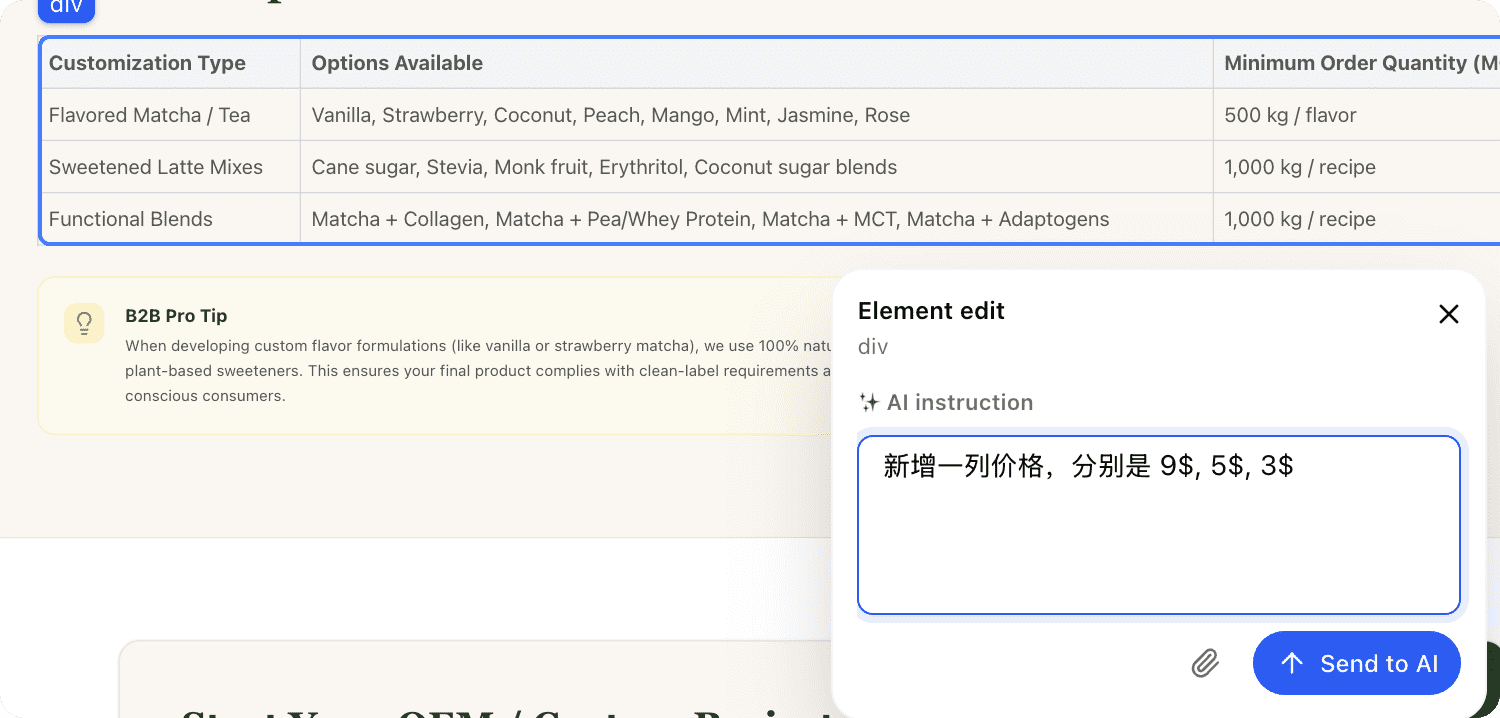
一次性修改多处内容("把所有按钮文案改成英文");
改变组件的结构和交互。
比如批量更新一个表格:
快捷键速查
操作 | 方式 |
|---|---|
进入原地编辑 | 双击文本 |
保存修改 | Enter,或点击页面其它位置 |
取消修改 | Esc |
打开元素编辑浮窗 | 双击任意元素 |
从改一个错别字到调整整套会员价格,直接编辑都能在几秒内完成——不排队、不等待、不花积分。复杂的交给 AI,简单的留给双击。