
Backend /
Take payments with Alipay
AI can write the payment code for you — say "add Alipay checkout to my site" and it will build the buy button, the order, the redirect to Alipay, and marking an order paid once the notification arrives.
One thing it cannot do for you: your Alipay APPID, keys and receiving account can only be obtained by you, from the Alipay Open Platform. Those values decide who gets the money, and Alipay only lets the account owner retrieve them.
So this article is not about code. It does one thing: help you find the handful of values on Alipay's side and fill them in correctly. The rest is the AI's job.
Three steps in total:
- Collect four values from the Alipay Open Platform (most of this article)
- Paste them into Backend → Integrations in Creght
- Tell the AI one sentence, and it wires up the page
Before you start
You need a business-verified Alipay account with the PC website payment product enabled in the Alipay Open Platform. Personal accounts cannot enable it — that is Alipay's rule, with no way around it.
PC website payment is supported today; WAP, in-app and face-to-face payment are not.
Step 1: Collect four values from the Alipay Open Platform
Sign in to the Alipay Open Platform and open the app that receives the money. The four values live on two different pages, covered one page at a time below.
1. APPID
At the top of 应用详情 (app detail) in the left sidebar — a number starting with 2021. Copy it.
2. App private key and Alipay public key
Click 开发设置 in the left sidebar, find the 开发信息 block, and click 查看 (or 设置, if never configured) on the first row, 接口加签方式(密钥/证书).
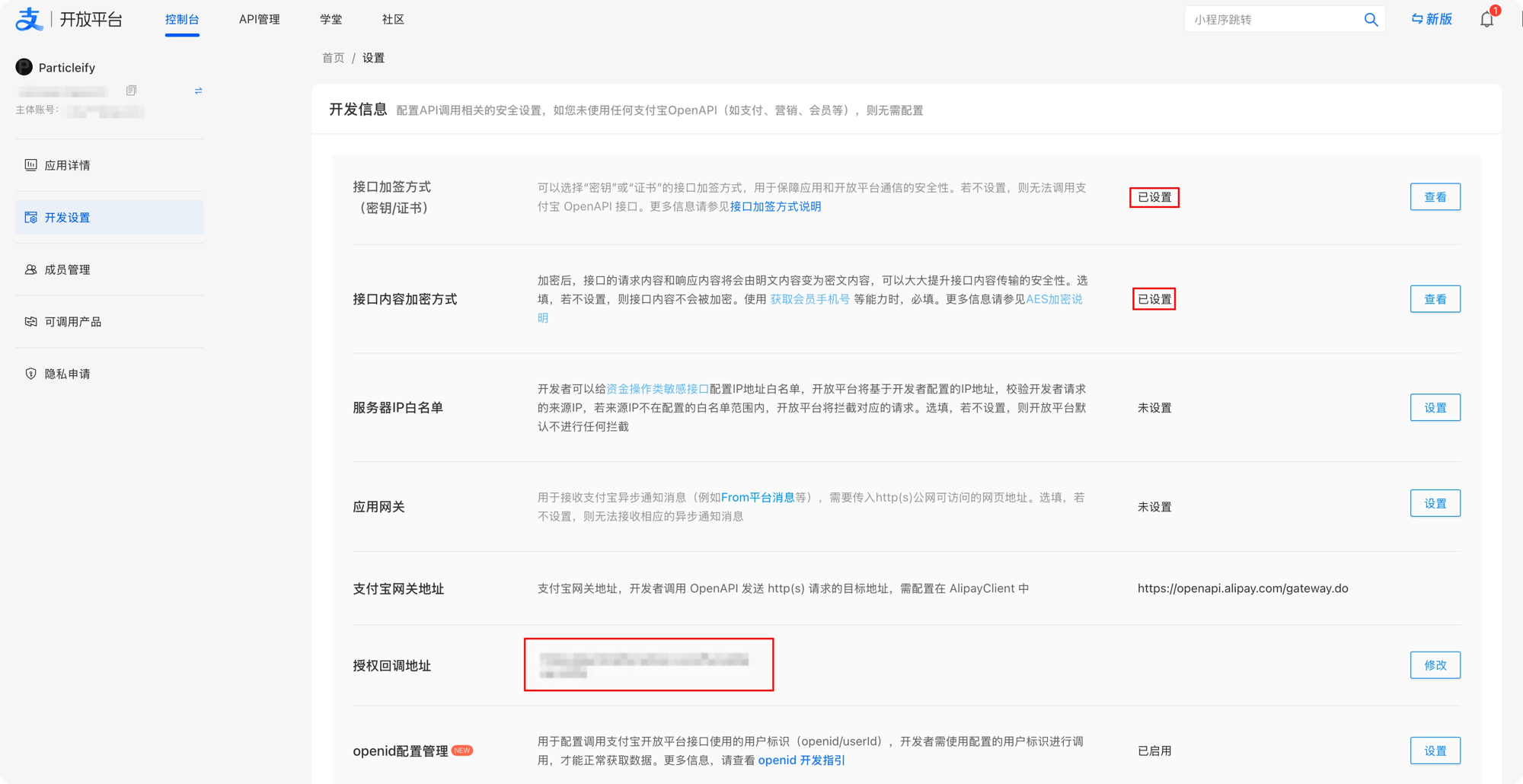
Three things to do on that page:
- Generate an RSA2 key pair with the Alipay key generator, in key mode — not certificate mode, which is not supported yet.
- You get two strings: keep the app private key (it goes into Creght) and paste the app public key into this page to upload it.
- After the upload, the same page shows an Alipay public key. Copy it.
This is the step people get wrong, because three similarly named strings show up along the way:
| Name | Generated by | Purpose | Where it goes |
|---|---|---|---|
| App private key | You (key generator) | Signs your requests | Creght's “App private key” |
| App public key | You (key generator) | Lets Alipay verify your signature | Upload to Alipay, not into Creght |
| Alipay public key | Alipay | Lets you verify Alipay's notifications | Creght's “Alipay public key” |
While you are here, glance at the 支付宝网关地址 on this page. Production is
https://openapi.alipay.com/gateway.do, which is why Creght's "Gateway" field can stay empty.
3. AES key (most people can skip this)
You only need it when the second row of 开发信息, 接口内容加密方式, says 已设置: click 查看 and copy the base64 string. Otherwise skip it; nothing later changes.
4. Seller PID
This one is not under 开发设置. Open the partner identity page (or 密钥管理 → mapi 网关产品密钥 in the sidebar); 合作伙伴身份(PID) at the top is the value. Click 复制.
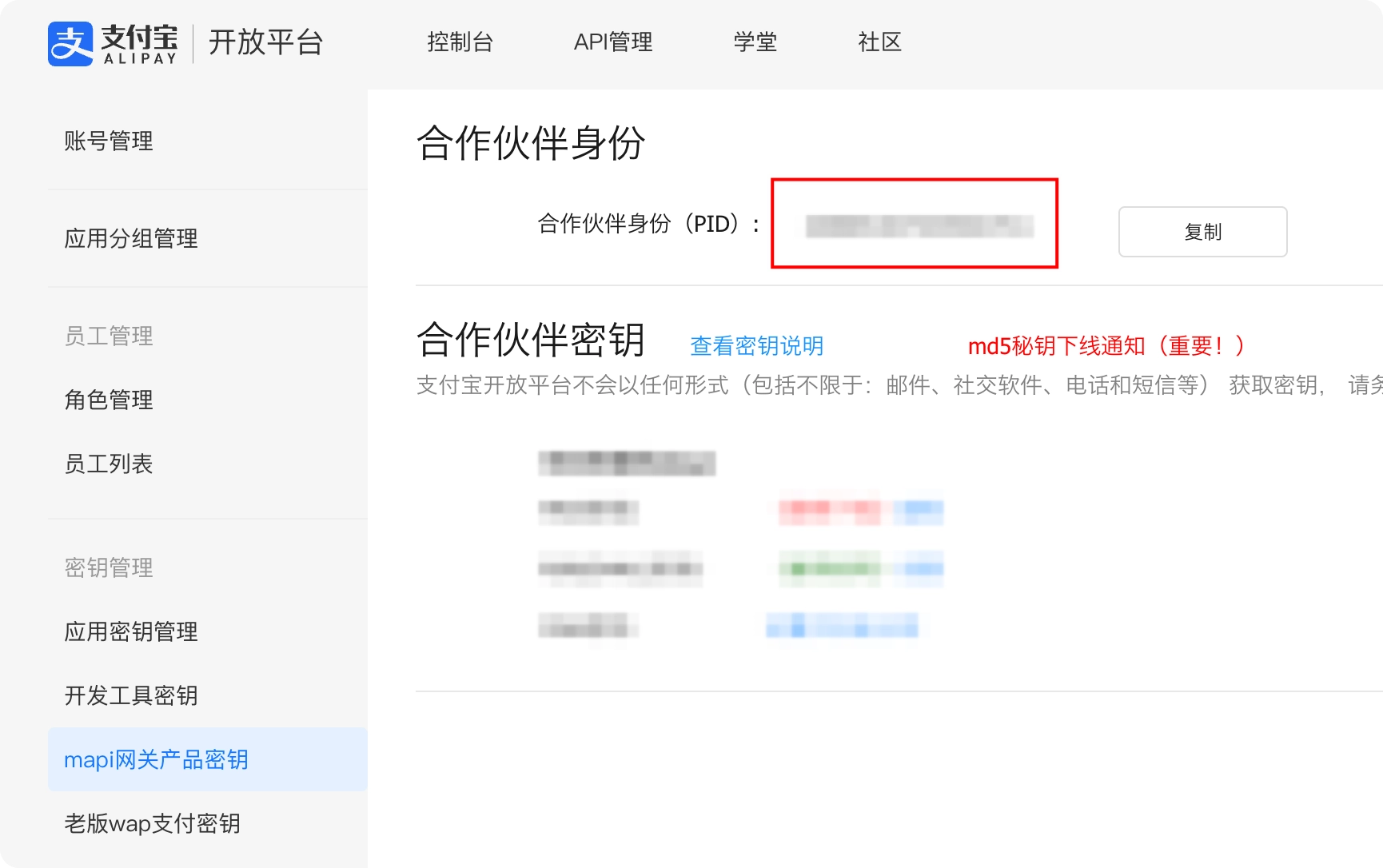
It starts with 2088 and identifies the account that receives the money. Creght uses it to confirm a payment really went to you, so it must match the account you actually collect with.
Step 2: Fill it in Creght
Open Backend → Integrations in the editor, click Alipay under "Add app", and fill in:
| Field | Value |
|---|---|
| Name | For your own eyes; distinguishes several configs on one site, e.g. “Main account” |
| Channel tags | Tells configs apart; default is enough. You only need two tags if you have two receiving accounts |
| App private key | The private key you kept in step 1 (not the app public key) |
| APPID | The number starting with 2021 from step 1 |
| Seller PID | The number starting with 2088 from step 1 |
| Alipay public key | The string Alipay gave you (not your own app public key) |
| Async notification URL | https://your-domain.com/func/alipay.notify — copy it as-is, see the note below |
| Return URL | Optional. Where the payer lands afterwards; page experience only |
| AES key | Only with content encryption enabled; most people leave it empty |
| Gateway | Blank means production. Fill the sandbox gateway only when testing in the sandbox |
Just copy the async notification URL as-is — you do not have to create anything. Whether a
payment actually arrived can only be learned from Alipay's server calling your site back; the
page the payer lands on afterwards is not proof, since anyone can open it. /func/alipay.notify is
the fixed convention, and in step 3 the AI creates that receiving endpoint for you, so you can fill it in now.
Use the domain your site is publicly served on — your custom domain, or the production domain Creght gives you after publishing — and it must be https. Do not use a preview domain: live Alipay notifications never reach preview domains. If you change domains later, come back and update this field.
On save, Creght actually calls Alipay to validate the set, checking four things at once: the APPID exists, the app private key matches the app public key you uploaded, the Alipay public key is right, and the gateway matches. A wrong value fails right there instead of when your first customer pays.
If saving fails
| Error mentions | Cause and fix |
|---|---|
isv.invalid-signature | The app private key and the uploaded app public key are not the same pair. Generate a new pair: private key into Creght, public key to Alipay |
isv.invalid-app-id | Wrong APPID, or a sandbox APPID without the sandbox gateway |
| Alipay public key verification failed | You pasted your own app public key. Copy the one Alipay displays instead |
isv.decrypt-error | Wrong AES key, or it was changed in the Alipay console |
isv.insufficient-isv-permissions | The app has not enabled PC website payment; enable the product in the console |
| Invalid app private key format | The key content is incomplete. PKCS#8 and PKCS#1 both work, with or without BEGIN/END headers, but nothing may be missing or mixed in |
Step 3: Let the AI wire up the page
Once it saves successfully, go back to the editor and tell the AI:
I've connected Alipay — add Alipay checkout to my page.
The AI handles the rest: creating the endpoint that receives payment notifications, creating orders, connecting the "Buy" button to Alipay, and marking an order paid when the notification arrives. Say what you are selling and what the buyer gets and the result will be better, for example:
I've connected Alipay — add a "Buy now" button to the course detail page. Show a success message after payment, and let me see all orders in the backend.
When the AI is done, publish the site: Alipay only sends notifications to a published production domain, so nothing arrives until you publish. Publish again after every later change to payment-related code.
After the AI is done, confirm these three
These are the ground rules for taking money. The AI handles them by default, and you can ask it to confirm:
- The price comes from server-side product data, never from the browser — otherwise customers set their own price.
- Only a verified Alipay notification means paid; the payer returning to your page does not.
- Notifications for one order arrive more than once, so fulfilment or access must take effect only once even on repeats.
To give the AI a more precise reference, hand it this link too: Take Alipay payments with an integration — that page is written for developers and AI; you do not need to read it yourself.
Always make one real payment before going live
Alipay's sandbox lets you walk the whole flow without real money. It has its own APPID, keys and gateway and cannot be mixed with production: fill the sandbox gateway and use the sandbox APPID and keys together.
But a working sandbox does not prove production works. Before going live, set one product to 0.01 temporarily, make a real payment on your production domain, and confirm the site received the notification and the order flipped to paid. Nothing substitutes for that.
FAQ
The payment went through but the site did nothing. Check three things in order: the async notification URL is an https address on your published production domain; the site has been published since the payment code changed; and that URL matches the endpoint the AI actually created — just ask the AI "what is my Alipay notification URL" to compare.
Can I use two receiving accounts? Yes. Add two Alipay integrations with different channel tags, then tell the AI which page collects with which tag. The same tag must not be on two payment configs — that is an error, because an order and a receiving account have to match one to one.
Can the keys leak? No. The app private key is stored only on the server, signing and verification happen on the platform, and your site code, logs and the browser never see it. Payment integrations are not allowed to expose keys to code at all, so the code the AI writes cannot see your keys either.